
Convert MIDI to MusicXML for notation apps
Open a MIDI file in Madosuite Sound, clean up timing in the piano roll and score view, then export MusicXML for Sibelius and other notation programs.
To convert MIDI to MusicXML, open the .mid file in Madosuite Sound, check the notes in its Score Editor, and export MusicXML. Sound is an audio and MIDI workstation that runs in your browser tab, and its MusicXML export is made for Sibelius and other notation programs.
MIDI and MusicXML are not the same thing
A MIDI file records what to play: which note, when it starts, how long it lasts, how hard it is hit. It says nothing about how the music should look on paper. A notation program has to guess the spelling of each note, where the beats fall and how to split long notes across bar lines.
MusicXML describes written music: notes, rests, bars, staves. Notation programs import it as a score. Converting means making those guesses once, in a place where you can see and fix them, before the file goes to your notation program.
What you need
- A Standard MIDI File (.mid).
- A browser. Madosuite is free and needs no account.
Madosuite runs a Linux machine in your browser, on your own device. Your files live in that machine’s home folder and are not uploaded to us.
Steps
- Go to madosuite.com and open Files.
- Press Upload and pick your .mid file.
- Open it with Sound. The MIDI tracks appear in the Edit window.
- Play it once to check that you have the right file and the right tracks.
- Clean up the parts you want on paper (see below).
- Open a track in the Score Editor and read through it as notation.
- Export MusicXML.
- Open Files and download the MusicXML file, then import it into your notation program.
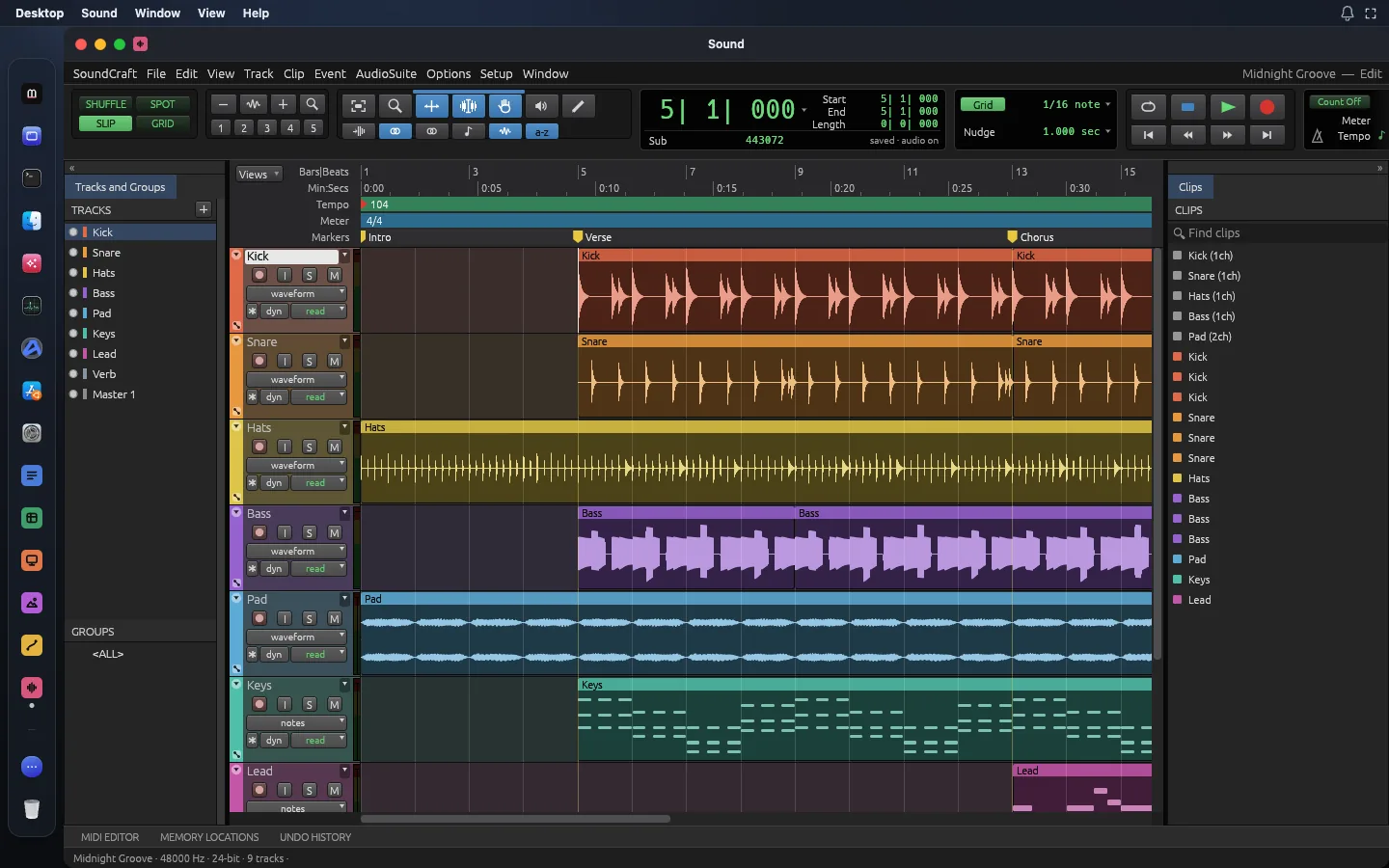
Clean up before you export
A MIDI file played by a person, or recorded from a keyboard, is rarely tidy. Small timing differences that sound natural turn into odd rests and tied notes on paper. A few minutes of cleanup makes the score far easier to read.
- Set the tempo and meter. Sound has tempo and meter maps with a tempo editor. If the file says 4/4 and the piece is in 3/4, every bar line lands in the wrong place. Fix this first.
- Set the key signature. Sound supports key signatures. Set the right key before you read the score, so you judge the notation in the key the piece is in.
- Quantize. Snap notes to the grid with quantize so a slightly early eighth note does not become a sixteenth rest and a dotted note. Use the coarsest value the music allows.
- Transpose if the part needs to be in another key or written for a transposing instrument.
- Fix single notes in the piano roll, which has a velocity lane, or in the event list, where you can see each note’s exact values.
- Remove what should not be in the score, such as tracks for drums you will not notate, or a click track.
Then read the result in the Score Editor. It shows the notes in standard notation, so you see the problems before your notation program does.
After the export
Import the MusicXML file into your notation program. Expect to do some finishing work there: layout, dynamics, articulations, lyrics, and the details that a MIDI file never held in the first place. MusicXML from MIDI gives you notes and rhythms to start from, not a finished, engraved part.
If you only need a printout, Sound can also produce printable engraved scores. If you made changes you want to keep as MIDI, Sound saves Standard MIDI Files as well.
Limits
Sound is pre-alpha. Its makers say it is roughly 40% of the way to replacing the app it is modelled on for real work. For this task:
- MIDI comes in from files. Recording MIDI from a controller is not supported yet, so you cannot play a part in from a keyboard in Sound.
- Choosing an audio interface and buffer size is not supported yet. In the browser, playback goes through the browser’s own audio.
- No translations yet. The interface is in English.
- Cleanup is up to you. A file that was never quantized will look busy on paper.
Check a short section in your notation program before you clean up a long piece, so you know the import looks the way you want.
Your files live in the browser’s storage for madosuite.com. Clearing the site’s data deletes them, so download your MusicXML and keep the original .mid.
If you are looking at Sound as a free DAW, see the Ableton Live alternative page or the FL Studio alternative page.
Go to the MIDI to MusicXML tool or the Sound app page.