
Edit photos, a PDF and a spreadsheet side by side in one browser tab
Photo, Grid, Word and PDF in windows on one desktop in a browser tab, sharing one home folder. A small report built that way, step by step.
To work on several files at once in a browser, open them in Madosuite: a desktop in one browser tab where each app runs in its own window, side by side. Photo, Grid, Word and PDF all read and save to the same home folder, so a file you make in one app is ready to open in the next.
Most online tools do one job on one file. You upload, convert, download, and start again on another site for the next step. Real work rarely fits that. A report needs numbers from a spreadsheet, a photo that has been cropped, and a PDF at the end. Madosuite keeps all of that in one place.
What the desktop gives you
- Windows. Each app opens in a window you can move, resize, minimise and maximise. Put two side by side, or keep one big and one small.
- A dock to start apps and switch between them.
- Files, a file manager for the home folder. Upload brings files in from your computer; download takes them out.
- One home folder for every app. Save a picture in Photo and it is there when Word asks for a picture to insert.
- A Terminal on the same Linux machine, with the same home folder, for when typing a command is faster than clicking.
- A Store to add more apps with one click, such as Fig and Design.
All of it runs on a Linux machine inside your browser, on your own device. Your files live in that machine’s home folder. They are not uploaded to us. You do not need an account.
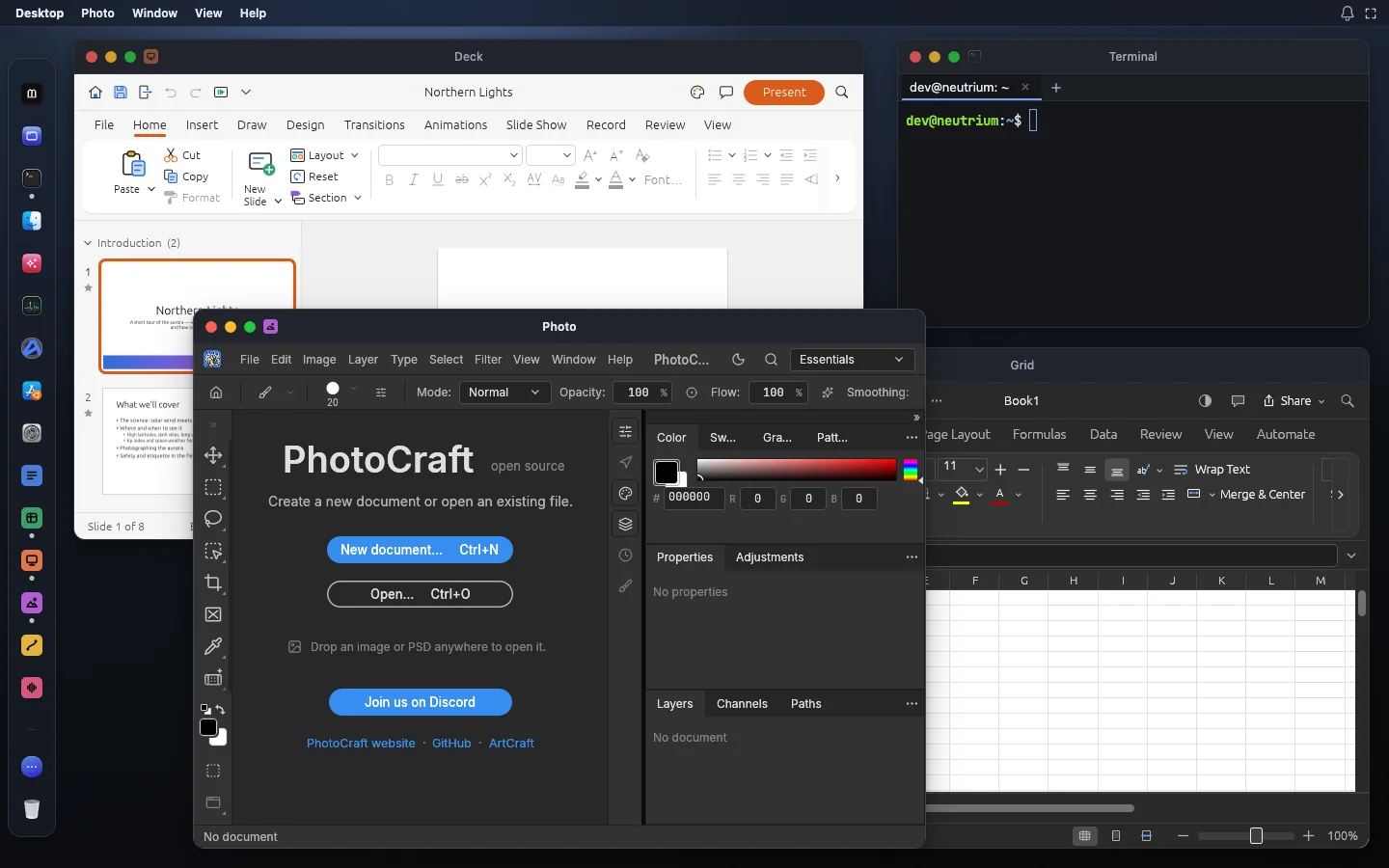
Example: a one-page sales report
Say you need to send a short monthly report: a few lines of text, a product photo, and the sales table, all in one PDF. Here is how it goes on one desktop.
1. Bring the files in
Open Files, press Upload, and pick the spreadsheet (say sales.xlsx) and the photo (product.jpg). Both land in the home folder.
2. Prepare the numbers in Grid
- Open
sales.xlsxwith Grid. - Sort or filter to the month you need, and add a total if the sheet does not have one. Grid has 500+ worksheet functions.
- Add a chart if a trend says more than the table. Grid has seventeen chart types.
- Use Page Break Preview to check the print area, then export a PDF of the sheet, for example
sales.pdf.
Keep Grid open. If a number turns out wrong later, you fix it here and export again.
3. Prepare the photo in Photo
- Open
product.jpgwith Photo in a second window, next to Grid. - Crop it, and brighten it with an adjustment layer such as Curves or Levels if it is dark.
- Use Export As to save a JPEG at a sensible size. Export As shows a preview and an estimate of the file size, so the report does not end up huge.
4. Write the report in Word
- Open Word in a third window and start a new document, or open a template from the start page.
- Write the text. Use the Heading and Normal styles so the layout stays tidy.
- Insert the photo you just exported from the home folder, and set text wrapping around it.
- Export the document as PDF, for example
report.pdf. Word’s PDF has selectable text, links and bookmarks.
With Grid, Photo and Word side by side, you can read a number in one window and type it in another without switching tabs or hunting for downloads.
5. Put it together in PDF
- Open PDF and combine
report.pdfandsales.pdfinto one file. Each file gets a bookmark, and links and forms are kept. - Check the page order. Move, rotate or delete pages if needed.
- Set the title and author in Document Properties, then save.
Open Files and download the final PDF. That is the only file that leaves the browser.
Where the Terminal fits
The Terminal is a shell on the same Linux machine. You can list the home folder, rename a batch of exports, or move files into folders. Anything you change there shows up in Files and in every app, because it is the same folder.
Limits
- The apps are early. They are the ArtCraft team’s open-source Crafting Apps (MIT or Apache-2.0) under Madosuite names, and most are in alpha. Photo is early alpha and its makers say it is not yet a Photoshop replacement for daily professional work. Grid and Word are alpha; PDF is young and moving fast. Check your output before you send it.
- PDF cannot print from the browser yet, and editing existing text in a PDF is not reliable yet. Make text changes in Word and export again.
- Office files to PDF happen in the office apps. PDF does not convert office documents; export from Word or Grid instead, as above.
- Your device does the work. Several big files open at once use your computer’s memory.
- Clearing the site’s data deletes your files. The home folder lives in your browser’s storage for madosuite.com. Download what you want to keep.
More answers on storage and privacy are in the FAQ. Each app has its own page: Photo, Grid, Word, and the PDF merge tool.
Open the Madosuite desktop and try it with your own files.