
CSV opens wrong in Excel: zeros gone, odd letters
Do not double-click the CSV. Put it through CSV to Excel: it keeps 0812345678 whole, leaves 13-digit numbers alone, finds the separator, and reads both UTF-8 and the Thai Windows encoding. Then open the .xlsx.
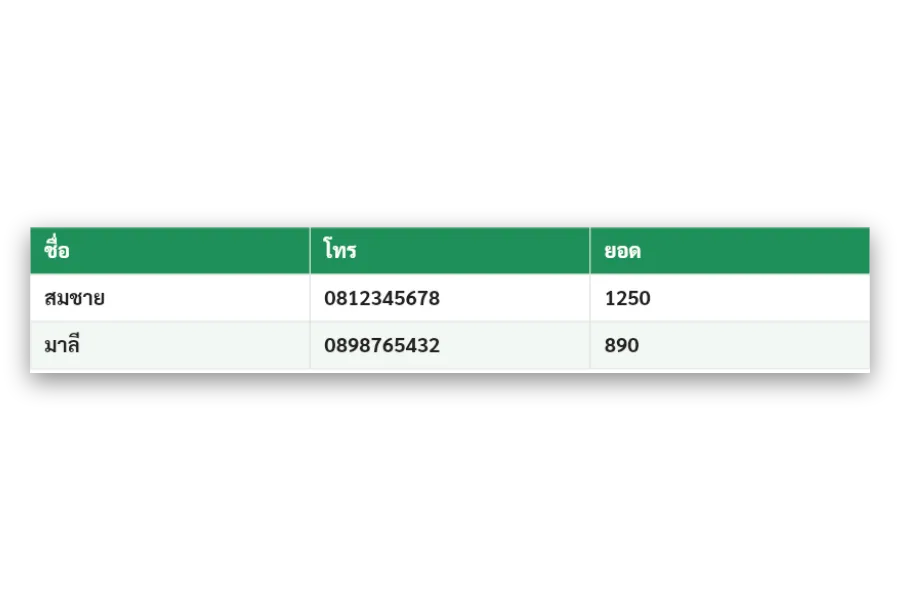
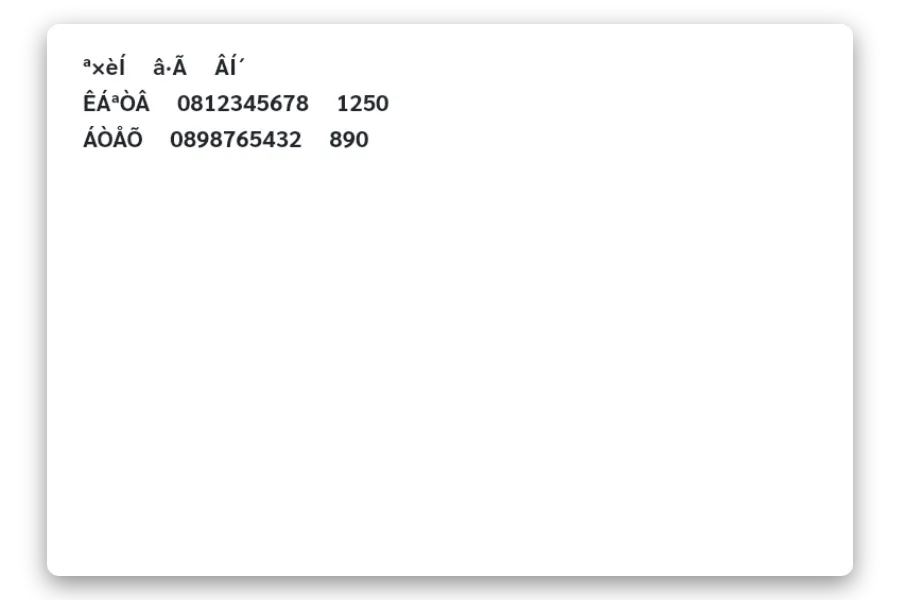 Before CSV, 55 BAfter XLSX, 2 KB
What goes wrong, and why
A CSV is plain text. It does not say which column is text, how letters are encoded, or what separates the columns. The program guesses.
| You see | The reason |
|---|---|
| 812345678 instead of 0812345678 | it took the phone for a number |
| 1.1001E+12 | a 13-digit ID taken for a number |
| 110010001234000 | the same, saved: digits after the fifteenth are gone for longer numbers |
| ���� or สม | letters read with the wrong encoding |
| everything in column A | another separator, common in Europe: a semicolon |
| 5-Jan instead of 5-1 | it took a code for a date |
The dangerous part is saving. The moment you save, the guess becomes the data.
Open it safely
- Keep the original CSV untouched. Work on a copy.
- Open CSV to Excel and press Choose files.
- Look at the table on the page: names readable, zeros in place, the right number of columns.
- Press Download and work in the .xlsx.
Our sample thai-874.csv is 55 bytes in the old Thai Windows encoding: a heading row, สมชาย with 0812345678 and มาลี with 0898765432. Opened as UTF-8 it is a row of question marks. Through the tool it is a 2 KB .xlsx with both names and both zeros.
Send it back safely
When another system wants a CSV, use Excel to CSV. It writes UTF-8, so Thai, accents and emoji are right, and dates come out as 2026-01-31, which no country misreads. Each sheet becomes a file of its own. Formulas come out as their last result.
If the receiving program is old and still shows symbols, ask which encoding it needs before you blame the file.
In Excel itself
You can do it there too: Data, From Text/CSV, choose the file, set File Origin to 65001 (UTF-8) or 874 (Thai), press Transform Data, and set phone and ID columns to Text before you load. It works well and takes five minutes. Do it there when the same file arrives every week, since the steps can be saved.
Check
- Count the characters of one ID: 13 for a Thai ID. A
=LEN(A2)down the column finds the odd ones. - Sort the phone column. Those without a 0 gather at one end.
- Look for
?and�with search. None should be found. - Compare the number of rows with the source system.
- Pick one row and compare every field.
What else goes wrong
A row breaks in two. There is a line break inside an address. A proper CSV puts quotes round it. Ask the exporter to.
Dates stay as they were written. That is on purpose: 5/1/2026 is January or May depending on who wrote it. Decide, then convert.
A column of amounts is text. Thousands separators or a currency sign. Replace them, then set the format to number.
Twelve months of CSV. Join them in one step with Merge Excel; see combining many files.
When to use something else
For files beyond a million rows, Excel has no room: use a database, or DuckDB. For a live connection, ask for the system’s own Excel export or API. For everything else, the rule fits on a sticky note: never double-click, never save over the original.
Questions
I already saved the broken file. Can I get the zeros back?
Not from that file. Go back to the original CSV, which still has them, and open it the right way.
Which separator does it expect?
Comma, semicolon, tab or bar; it finds out by itself.

