
Product photos on a white background, for free
Take the photo by a window, run it through Remove background with white as the colour, then make it square with the social media resizer. Free, full size, many at a time, and your new product does not leave your computer before launch day.
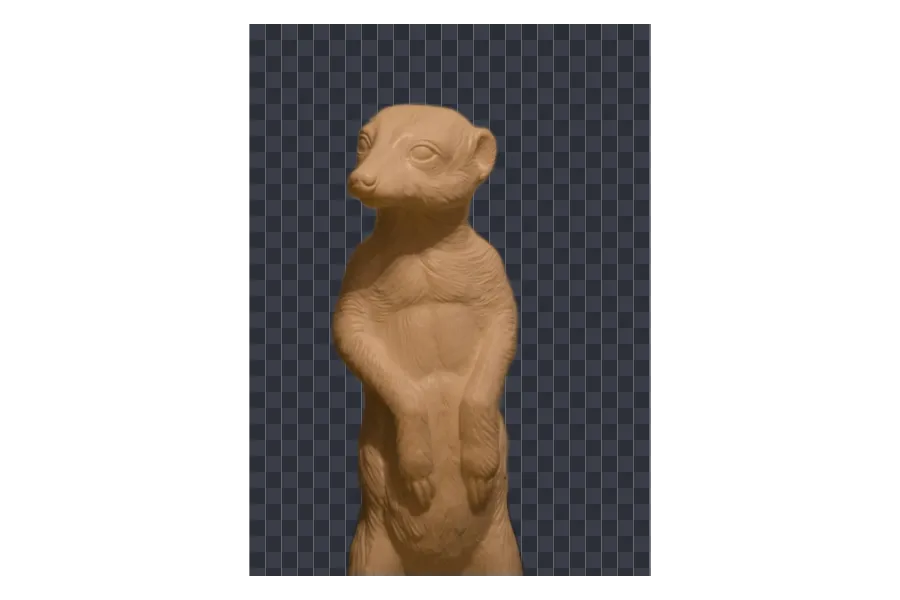
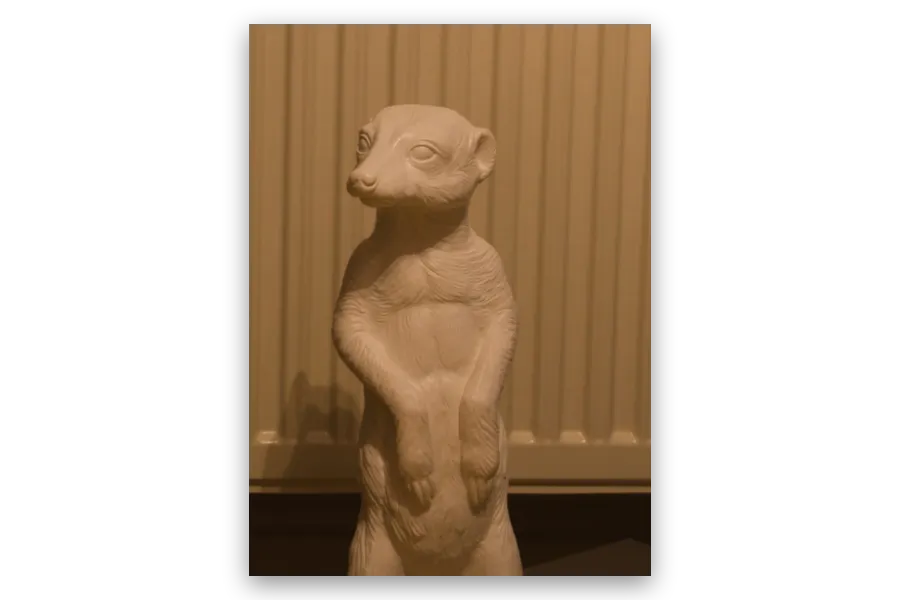 Before JPG, 42 KBAfter PNG, 235 KB
Photograph for the cut-out
The tool finds one clear subject. Give it one.
- Put the product on a sheet of paper that differs from it: grey card for white mugs, white for dark ones.
- Use window light from the side with a white board opposite, to open the shadow.
- Step back and zoom in. Close phones bend straight edges.
- Wipe it. Dust that you do not see at home shows at 1024 pixels.
Glass, fur, mesh and chains are hard. Shoot those on real white paper and skip the cut-out.
From phone to shop
- Open Remove background and press Choose files. Choose all the photos of one product.
- Choose A colour and keep white (
#ffffff), or choose Clear (PNG) for a banner. - Zoom to the edges, then press Download.
- Open Social media resizer, choose Shop listing 1024×1024, and for If the shape is different choose Whole, coloured sides with white.
- Press Download.
The sample on this page is our cat, cut from a busy room: 42 KB JPG in, 235 KB PNG out. A PNG is larger because it keeps every edge exactly. For a listing, white is fine as JPG, and Compress image brings it down.
Make ten photos look like one shop
Shoots on different days come out in different colours. Run the set through Enhance photo at the same strength, or the photo editor with the same three numbers. Leave the product’s real colour alone: a red that became orange comes back as returns.
Fill the frame the same way each time, about 85% of the square. Mixed sizes make a page look like a flea market.
What goes wrong
A grey edge or a halo. The paper was close in colour to the product. Shoot again on a contrasting sheet.
A handle or a hole is filled in. Look inside cup handles and scissors. If the tool filled it, shoot it at an angle that shows more of the gap.
The shadow is gone and it floats. A pure cut-out has no shadow. Some shops want that. For your own site, keep a photo with its natural shadow on white paper beside the cut-outs.
It removed part of the product. Something in it looked like background, such as a white label. Shoot on grey.
Check before you upload
Put the result on black, then on white: halos show on one of them. Look at 100%. Check the pixels against the shop’s page for sellers; platforms change their rules now and then, so trust theirs over any list, ours included. Check that the first picture says what the thing is without words.
If people copy your pictures, put your name on the second and third photo with Watermark image, never over the first: many shops refuse text on the main one.
When to pay somebody
For jewellery, transparent bottles and products standing in their own reflection, a retoucher or a paid cut-out service can still do better. The model on your device (BiRefNet lite) cuts hair and fabric edges cleanly, but glass is hard for it, and it says so. For a hundred products a month, time is the cost: a light tent and a fixed camera save more of it than any software.
For the sizes of other places, see picture sizes for social media.
Questions
Can I do fifty products at once?
Yes, many pictures at once. Look at every result: a batch hides the two bad ones.
Is white better than clear?
Upload white where the shop wants white. Keep a clear PNG for banners and packaging.
