
Rename photos by date and number, hundreds at once
Batch rename reads the date inside each photo and builds new names from a pattern. Type {date}_{n:3} and our three samples became 2026-01-05_001.jpg, 2026-03-18_002.jpg and 2026-03-21_003.jpg. Nothing is uploaded and the originals are not touched.
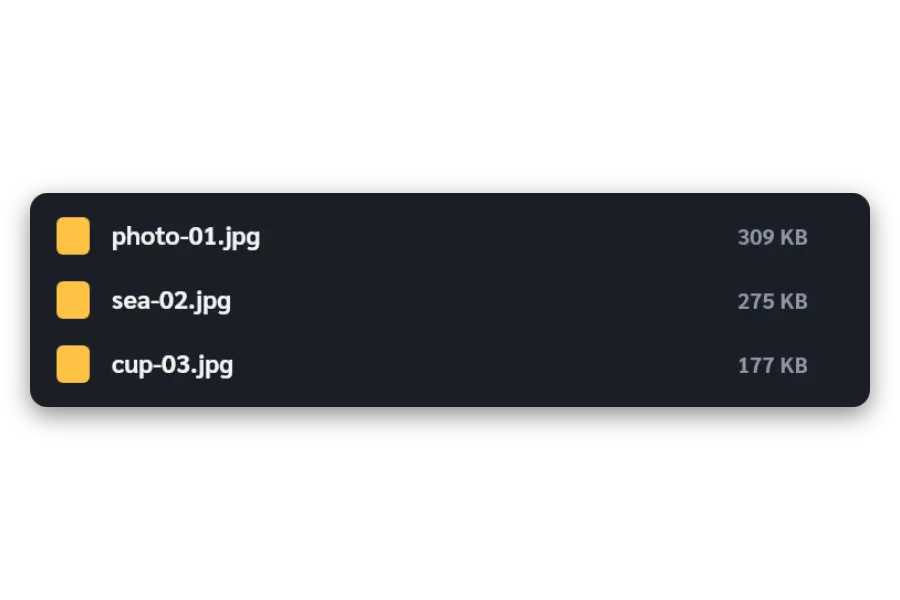
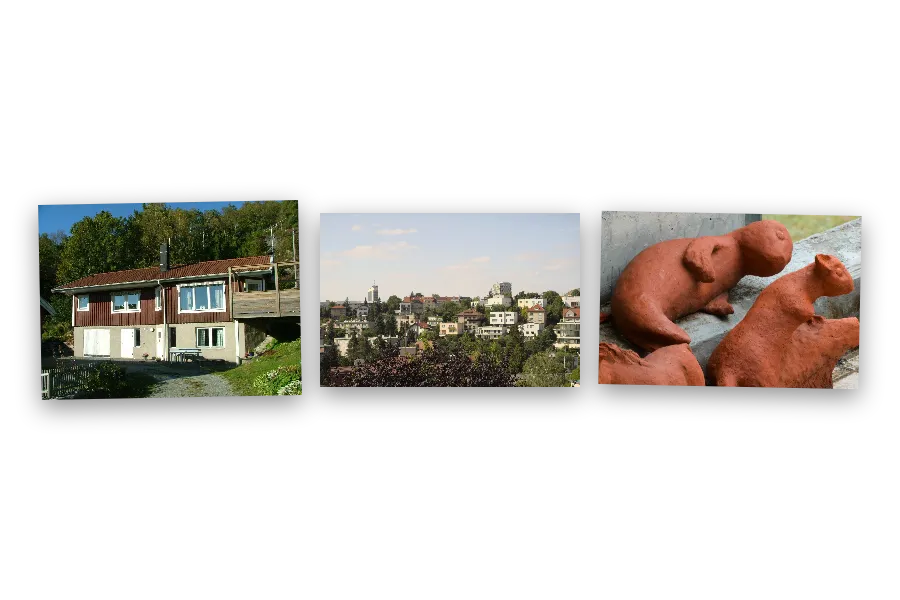 Before JPG, 761 KBAfter 3 × JPG, 761 KB
Why names matter
IMG_4821.JPG from two cameras is two different photos, and copying one over the other is a real way to lose a wedding. A date in front, year first, sorts by itself in any program for ever. A number at the end keeps the order within a day. A word in the middle tells you what it is when the file is far from its folder.
The pattern
| Write | You get |
|---|---|
{name} |
the old name |
{n} |
a number, with as many digits as you set |
{n:3} |
a number with three digits: 001 |
{date} |
the day the photo was taken |
{time} |
the time it was taken |
{camera} |
the camera’s name |
Patterns that work well: {date}_{n:3} for one camera, {date}_{time}_{camera} for two cameras at one event, 2026-wedding-ploy-{n:3} for delivery.
Rename
- Open Batch rename and press Choose files. Choose them in the order you want them numbered.
- Write the pattern in New name.
- Set Count from and Digits. Two digits are enough up to 99.
- Use Find in the old name and Replace with to remove “IMG_” or “Copy of “.
- Choose Letters, such as lower case, or words-with-dashes for a website.
- Read the new names on the page and press Download.
Two cameras, one day
Clocks differ. If camera B runs four minutes fast, its photos will be out of order by four minutes. Photograph the same wall clock with both at the start of the day. If you forgot, find one moment both have, such as the kiss, and compare the times with View EXIF. Rename each camera as its own batch, with its own letter: a-{n:3} and b-{n:3}.
Folders instead
If the aim is to find photos again, folders may do more than names. Sort photos makes them by country, year, month, day or camera, from the data inside. With country and month, our three samples landed in Thailand/2026-01, Czechia/2026-03 and France/2026-03. Photos that say nothing go to a folder of their own.
Before either, clear the doubles with Find duplicate photos.
What goes wrong
Some names have no date. Those photos have none inside: screenshots, chat pictures, scans. Do them apart.
All the dates are the same. A program wrote the day of export into each file. Use the originals.
The numbers are out of order. Files were added in another order. Sort by name in the file window before you choose them.
Raw and JPG no longer match. Rename both in one batch order, or cull first and rename after.
A site refuses the names. Spaces or Thai letters. Choose words-with-dashes.
Check
The number of files in the ZIP equals the number you chose. The first and the last photo are what you expect. Pick one in the middle and compare its name with its date in View EXIF. Only then delete the copies you do not need, and never the originals on the same day.
When to use a program
For 5,000 files, or to write the new names over the old ones in place, use a program on the disk: Lightroom’s import rules, Adobe Bridge, or exiftool on the command line. For tonight’s folder, the page is enough.
Questions
Are my originals renamed?
No. You get renamed copies in a ZIP; the originals stay as they are.
A photo has no date inside. What happens?
Chat apps strip it. Look with View EXIF, and rename those in a batch of their own with a name you type.