
PDF to Word: why the layout breaks and what to do
PDF to Word gives you an editable .docx with paragraphs, headings and pictures. It works well for letters and reports, and poorly for brochures and forms, because a PDF does not store paragraphs at all. Knowing that tells you what to expect and what to do instead.
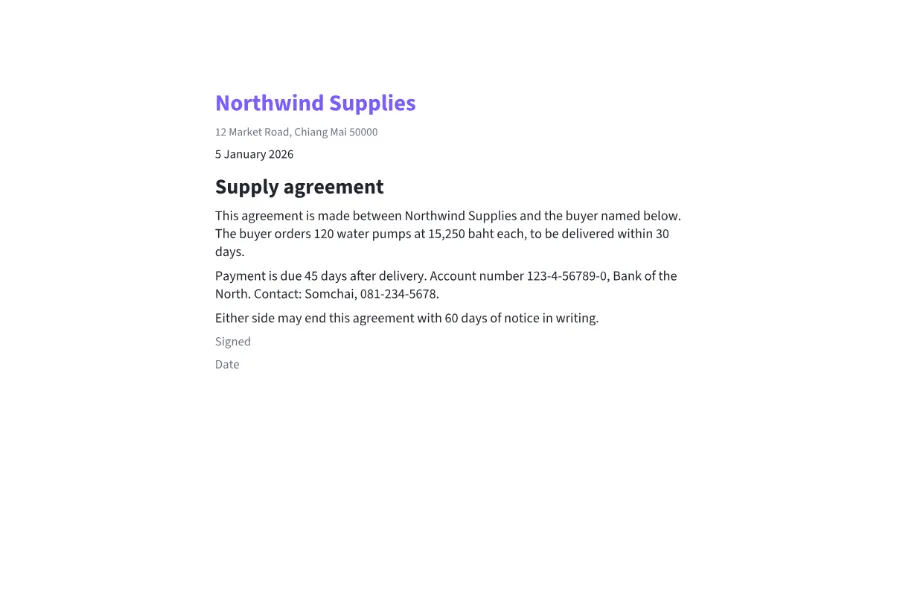
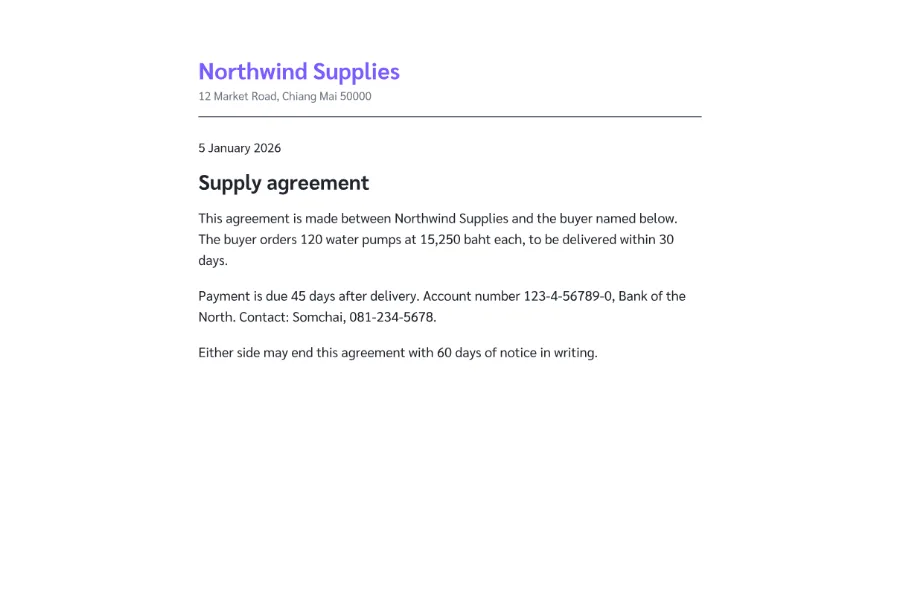 Before PDF, 8 KBAfter DOCX, 2 KB
What a PDF really holds
A PDF says “draw this letter here, and that letter there”. It has no idea that twelve lines are one paragraph, or that a row of numbers is a table. A converter has to guess. Good guesses come from simple pages: one column, plain headings, even spacing. Bad guesses come from columns, text boxes, forms, and anything that was laid out by hand.
So judge the page before you convert:
| Page | Expect |
|---|---|
| letter, report, contract | good, small repairs |
| two columns | text in the right order is not certain |
| form with boxes | words without the boxes |
| price list, statement | use PDF to Excel |
| scan | nothing until you OCR it |
Convert and repair
- Open the PDF and try to select a sentence with the mouse. If you cannot, it is a scan: run OCR PDF first.
- Open PDF to Word, press Choose files, and press Download.
- Open the .docx. Select all and set one font.
- Fix the headings with styles, so the contents page works.
- Search for two spaces and for line breaks in the middle of sentences, and replace them.
In our Thai test page, a certificate of employment with six lines, every vowel and tone mark came through. One sentence was broken into two paragraphs where the line ended on the page, which is the usual thing to fix.
The faults you will meet
A paragraph for each line. The lines were far apart. In Word, replace paragraph marks with spaces in the part that is affected.
Strange letters. The PDF used a font without a map back to letters. Copy a word from the PDF into a note; if it is already wrong there, no converter can read it. OCR the page as a picture.
Headers in the middle of the text. Page headers are just more words to a PDF. Delete them once with search and replace.
Missing boxes and lines. They were drawings, not text. Draw a Word table again; it is quicker than looking for a better converter.
Check it
Put the two side by side and compare the first line and the last line of each page. Then compare every number: amounts, dates, phone numbers. To be sure, turn your .docx back into a PDF and run both through Compare PDF. It lists every word that differs, which is faster and surer than reading.
Maybe you do not need Word
- A date or a name to change? Edit PDF adds text on the page. It does not change the words already there, so cover the old one with a white box first. Do not do this to hide things; the old words stay in the file.
- A form to fill in? Fill PDF form.
- Only the words? PDF to text is cleaner to paste.
- A few pages to drop or reorder? Organize PDF.
Where else to go
If the sender made it in Word, the best converter is an e-mail: ask for the .docx. Microsoft Word itself opens PDFs and does well on documents it made. For a designed brochure, someone has to lay it out again, and the text from here is their starting point. Whichever way you choose, convert on your own device if it holds salaries or health: the file does not have to go to a server to become a Word document.
Questions
Can a scanned PDF become Word?
Not directly; a scan has no text. Run OCR first, then convert, and read the result against the scan.
Can I keep the exact look?
No converter keeps a complex page exactly. If the look matters and the change is small, write on the PDF itself with Edit PDF.
